Showing posts with label Classroom Tips. Show all posts

Sunday, August 10, 2014

Quick Tech Tip for Your Classroom

Hi Friends!

I'm here today with a quick classroom tech tip that I'm super jazzed about!


I recently found out about this free website that helps you create a fun email signature with clickable links to your blog, Facebook, Pinterest, and more. The website is called WiseStamp and you must check it out.


You sign up for a free account and then fill in all of the information you want to include. There's a couple different settings you can play around with to create the look you want for your signature. You add the links you want to include and a picture and viola! 


Once you sign in to your email account and compose a new email your signature is ready for you!


You can also follow this tutorial for how to set up your signature in Outlook. 

I created one for my blog email and one for school with my info and links to our school's website and Facebook page. I'm pretty excited to use it for emails in my classroom.


Tuesday, July 29, 2014

Taming the Digital Clutter- Saving Files and Staying Organized

Good morning! Today I'm going to share with you how I keep all of my school, TPT, and blogging files organized and easy to access whether I'm on my school computer or my home computer. There are many instances when I want to open a file at school that I created at home and Google Drive lets me do that in a couple easy clicks without having to carry any extra equipment with me. Google Drive and I are pretty much BFF's. It makes everything so easy and gives you 15gb of free space which I've found is a lot to fill up. I have ALL of my clipart, school files, blog files, and more on there. I hardly ever save anything to my actual computer.

If you're already a Google Drive user, then simply sign in to the website. If you're not a Google user, sign up! Once you're signed in to Google Drive, you'll notice in the lower left-hand corner it says, "Install Drive for your computer," - click that. This is where the magic happens!


After Google Drive has installed on your computer you'll notice the little icon for it in the toolbar at the top of your computer. Whenever you need to access your files, simply click on the icon. 


When I open my Google Drive icon my files come up. I have my files separated into categories for my blog, TPT, school, clipart, etc. This makes it really easy to access what I want quickly. (Originally it took a bit to put everything in to folders, but it was so worth the time!).


When I open my school folder, I have the files organized by subject or month. If I'm looking for something I teach in August, it's filed under the August folder. If I need an award it's located in the Awards folder.


When I'm creating projects for my classroom or products for TPT and I want to use clipart, I open the folder titled Clipart back on my main Google Drive screen. I have my clipart separated by the creator's name. This helps me get to know my clipart and the creators of the clipart so that I can give them proper credit. My go-to person for clipart is Creative Clips, so this is usually where I'm clicking 95% of the time. 


Once I click on a creator of clipart, the menu opens up to more folders with categories. If I know I'm making something reading related, I might click on the cute set, "Reading Buddies." 


Finally, it brings up the clipart in that category and I can easily select which image I want. 


What I love about storing my files this way is that I don't have to think! If I create something new or update an existing file I just make sure to save it to Google Drive and it does all of the hard work for me. When I get to school and click on the same Google Drive icon on my laptop (make sure to install that icon on each computer), all of my files are ready to go. No more wondering if you saved the latest version of a file to a thumb drive or which computer the file is located on. 

Easy and organized! 

Do you use Google Drive? I'd love to hear your thoughts! 

Make sure to check back in tomorrow for my What I'm Loving Wednesday linky!


Monday, March 24, 2014

Brain Breaks


Happy Spring Break to anyone else out there Spring-Breaking it right now! 

I'm over at The Collaboration Connection blog today sharing a free website every teacher should know about if they have a class of wiggly kiddos or need some time for a quick breather and regrouping at some point throughout the day.

The website is called GoNoodle and it's FREE!

Check it out!

Collaboration Connection

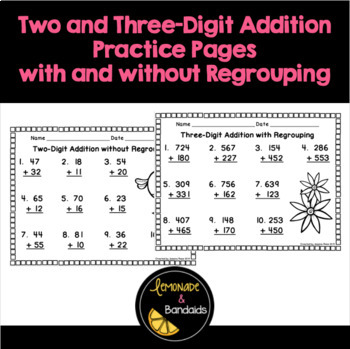
And if your students are needing some extra practice with two-digit and three-digit addition with and without regrouping, check out my latest TPT pack!


Tuesday, December 11, 2012

Teacher Tip Tuesday- Names on Desks

Happy Tuesday!

 I thought I'd share a quick tip that I learned about when I was student teaching. December is about the time of year when name tags on desks start to get really funky. The kids pick at them, the packing tape, contact paper, velcro, etc. gets gummy and weird, and doodles are drawn all over them. Instead of battling the name tags, I simply write the names of my students on their desks in Sharpie. I also put their student number and A, B, C, or D for team captains. 

(Phone pictures are awful. Phone pictures taken by me are doubly awful. You're welcome). 


The Sharpie comes off throughout the year as the desks gets cleaned and I have to rewrite their names. At the end of the year we scrub the names off completely. I've used whiteboard cleaner, Mr. Clean Magic Eraser, and 409 with success. Write on!

Wednesday, October 31, 2012

Desk Fairy

Happy Halloween! Today after school the Desk Fairy stopped by a couple of organized desks in my classroom and I cannot wait to see the kids' reactions tomorrow! The text on the card is kind of hard to read because I took the pictures with my phone and there's quite a glare. The front says, "The Desk Fairy was here...your desk was so nice and neat, the Desk Fairy left you a little treat!" The back says "Thanks for being so organized! Keep up the good work!" 


I ordered The Desk Fairy ordered the cards from Vistaprint, but they could easily be made at home. A piece of candy was taped to the back of the card, the card was placed on their desks, and glitter was sprinkled around because duh...it's a fairy...and to show the fairy's awesomeness. The treat on the back changes. Sometimes it is a piece of candy, or stickers, erasers, etc. I don't do a prize box in my classroom, so these kind of things make it extra fun. I try to remind the Desk Fairy to come to my room about once a month or so. 

The desks in my class this year stay pretty organized for the most part, but there have been some random papers stuffed inside and even some acorns that the little "squirrels" have apparently been collecting and saving for winter. Yikes. I guess it could be worse, it could be like when I was a kid and in 4th grade a girl in my class thought it would be smart to keep the small milk cartons in her desk from snack time...still full of chunky milk. Yum! We had class outside for a week until we figured out what the horrible smell was. I can still kind of smell it in my mind. We should've had a Desk Fairy back then!